
Laravel 9 Resize Image Before Upload Example
https://www.itsolutionstuff.com/post/laravel-9-resize-image-before-upload-exampleexample.html
Hello Dev,
This tutorial shows you laravel 9 resize image before upload example. This post will give you simple example of laravel 9 generate thumbnail image. you will learn laravel 9 resize image before upload. In this article, we will implement a laravel 9 image intervention example. Let's get started with resize and upload image in laravel 9.
In this example, we will install the intervention/image composer package. intervention/image provides to resize image using resize() method. we will create a simple form with the input field. you can choose an image and then you will see a preview of the original and thumbnail images.
So, let's follow the below steps to generate a thumbnail image in the laravel 9 application.

Step 1: Install Laravel 9
This is optional; however, if you have not created the laravel app, then you may go ahead and execute the below command:
Step 2: Install Intervention Image Package
In second step we will install intervention/image for resize image. this package through we can generate thumbnail image for our project. so first fire bellow command in your cmd or terminal:
Read Also: Laravel 9 Markdown | Laravel 9 Send Email using Markdown Mailables
Step 3: Create Routes
In this step we will add routes and controller file so first add bellow route in your routes.php file.
routes/web.php
Step 4: Create Controller File
Now require to create new ImageController for image upload and resize it, so first run bellow command :
After this command you can find ImageController.php file in your app/Http/Controllers directory. open ImageController.php file and put bellow code in that file.
Make sure, you have created "images" and "thumbnail" folder in public folder.
app/Http/Controllers/ImageController.php
Step 5: View File and Create Upload directory
Ok, in this last step we will create imageUpload.blade.php file for photo upload form and manage error message and also success message. So first create imageUpload.blade.php file and put bellow code:
resources/views/imageUpload.blade.php
Run Laravel App:
All the required steps have been done, now you have to type the given below command and hit enter to run the Laravel app:
Now, Go to your web browser, type the given URL and view the app output:
Read Also: Laravel 9 Pagination Example Tutorial
Output:
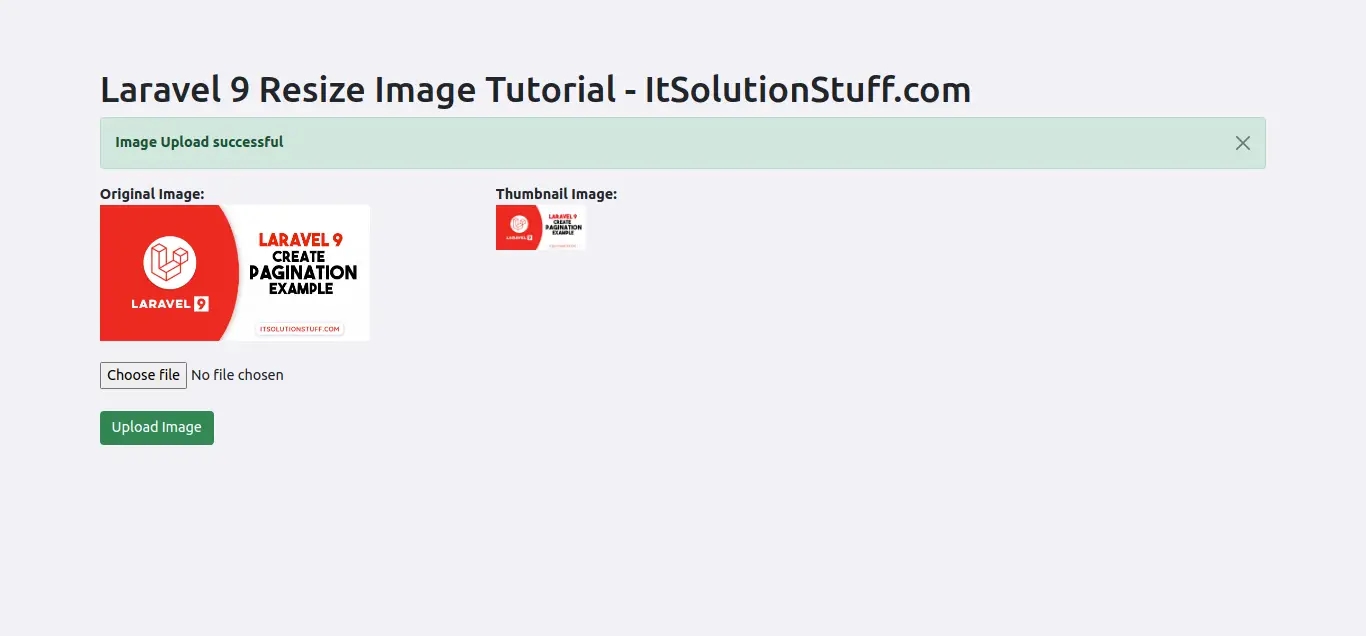
I hope it can help you...
Last updated