
Laravel 9 Create Multi Language Website Tutorial
https://www.itsolutionstuff.com/post/laravel-9-create-multi-language-website-tutorialexample.html

Hello,
This article will provide some of the most important examples of how to create multilingual website in laravel 9. This article goes in detail on laravel 9 multilingual website example. This tutorial will give you a simple example of how to add multiple language in laravel 9. This article will give you a simple example of laravel 9 multi language with language dropdown. Let's get started with laravel 9 multiple language website.
In this example, we will create three languages English, Spanish and French website with translation. we will use laravel localization to add a translation for label. Then we will create middleware to manage dynamic language. We will create one blade file with a dropdown where we can select a language and it will work dynamically. so let's see the below steps:
So, let's follow a few steps to adding multi language support in laravel.

Step 1: Install Laravel 9
This is optional; however, if you have not created the laravel app, then you may go ahead and execute the below command:
Step 2: Create Lang Files
In this step, we simply need to create following folders and files for english, france and spanish language files in lang folder.
let's create files as bellow listed:
resources/lang/en/messages.php
resources/lang/fr/messages.php
resources/lang/sp/messages.php
Read Also: Laravel 9 PDF | Laravel 9 Generate PDF File using DomPDF
Step 3: Create Routes
In this step, we will create two routes one for display dashboard page with language dropdown and another for you can change language logic.
so add bellow routes.
routes/web.php
Step 4: Create LangController Controller
In this point, now we should create new controller as LangController. this controller will manage layout and change language dynamically logic, so put bellow content in controller file:
app/Http/Controllers/LangController.php
Step 5: Create View
In Last step, let's create lang.blade.php(resources/views/lang.blade.php) for layout and we will write design code here and put following code:
resources/views/lang.blade.php
Step 6: Create Middleware
In this file we need to create one middleware that will manage dynamic language that we selected on dropdown. so let's create middleware using bellow language.
Now you have to update middleware file like bellow:
app/Http/Middleware/LanguageManager.php
Now we need to register it to kernel file. so let's add it as bellow:
app/Http/Kernel.php
Run Laravel App:
All the required steps have been done, now you have to type the given below command and hit enter to run the Laravel app:
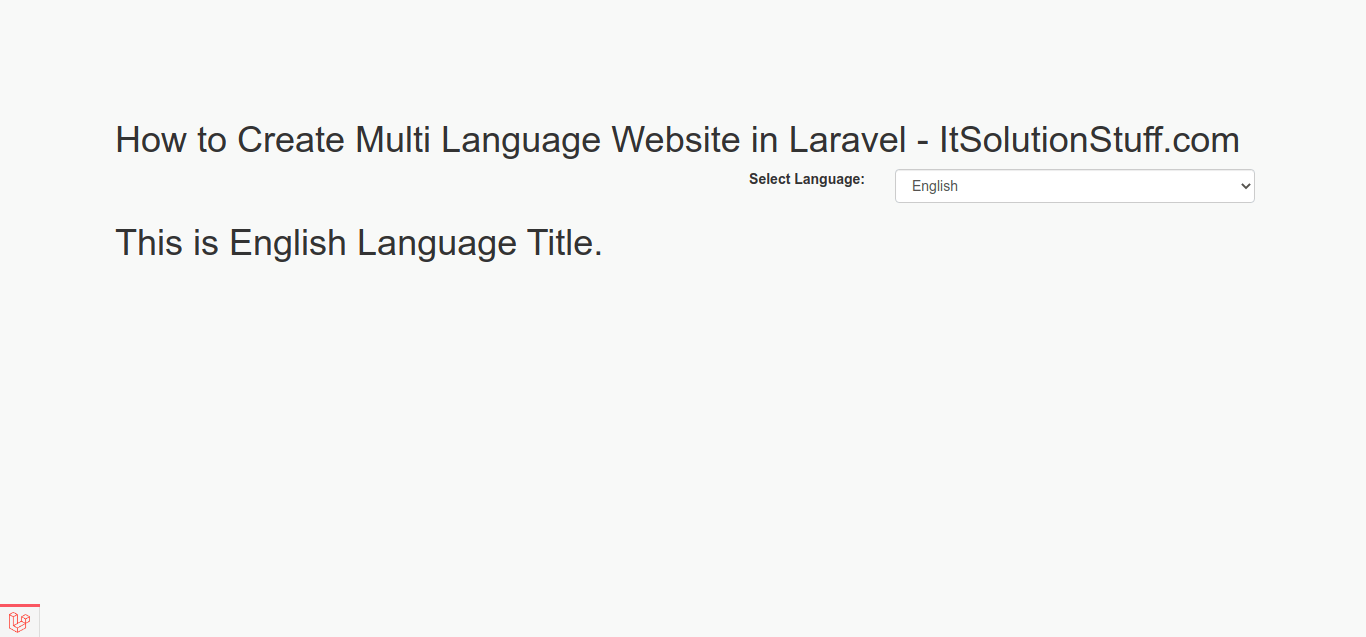
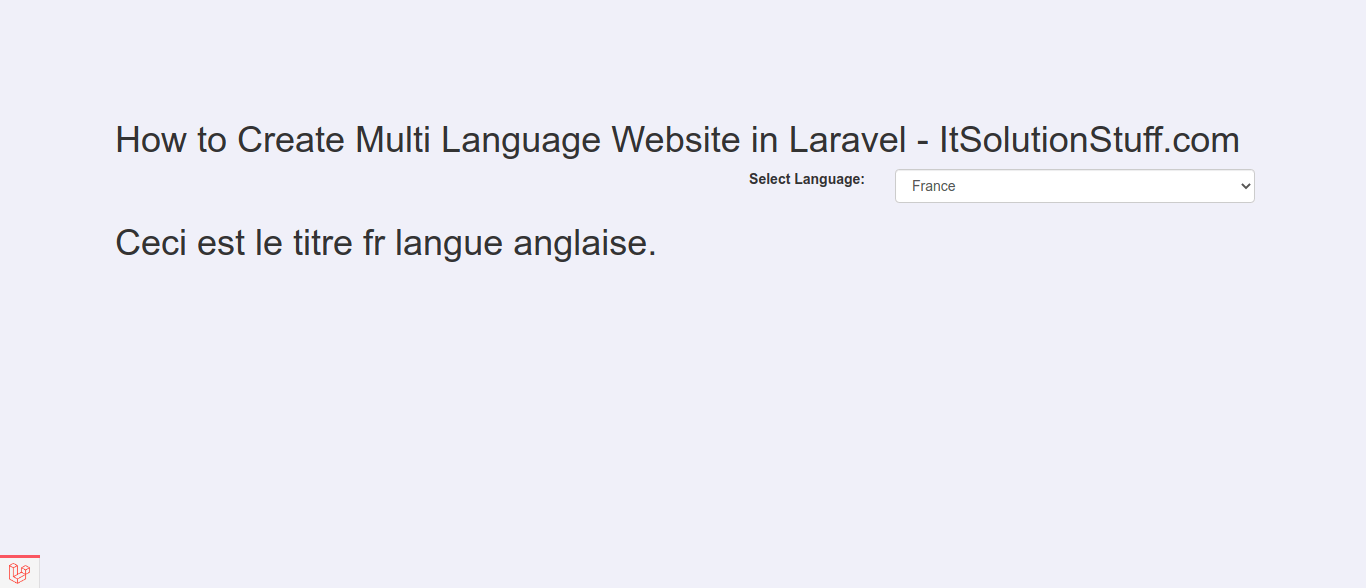
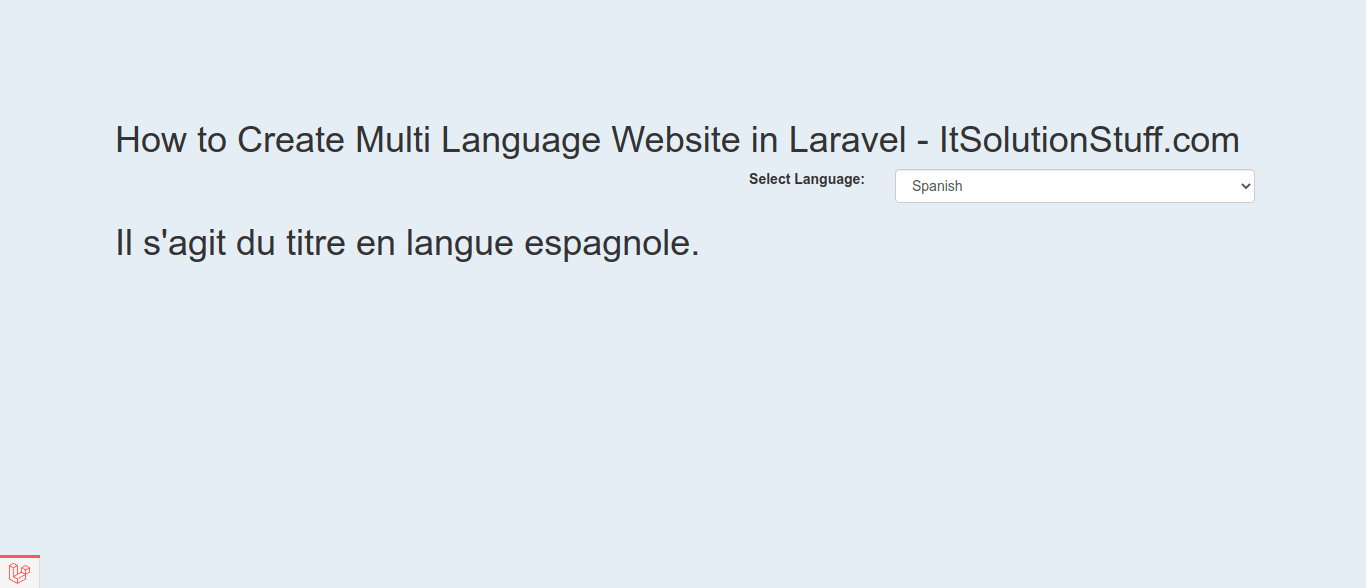
Now, Go to your web browser, type the given URL and view the app output:
Read Also: How to Merge Multiple PDF Files in Laravel 9?
English Language:
Franch Language:
Spanish Language:
I hope it can help you...
Last updated