
Laravel 7 CRUD Example | Laravel 7 Tutorial Step By Step (ok)
https://appdividend.com/2020/03/13/laravel-7-crud-example-laravel-7-tutorial-step-by-step/
Laravel 7 CRUD Example | Laravel 7 Tutorial Step By Step

Laravel 7 CRUD is the essential operation to learn laravel step by step for beginners. Let’s see how to build small web applications that insert, read, update, and delete data from a database. We can upgrade your old versions by going to this link.
Laravel 7 crud project overview
Step 1: Install Laravel 7.
Step 2: Configure a MySQL database.
Step 3: Create routes and migration files.
Step 4: Create the model, route, controller, and view file.
Step 5: Configure the bootstrap and create the views for Laravel
Step 6: Display the data to the frontend.
Step 7: Edit and update a data to a database.
Step 8: Write a logic to delete the data from a database inside the controller file.
Server Requirements
PHP >= 7.2.5
BCMath PHP Extension
Ctype PHP Extension
Fileinfo PHP extension
JSON PHP Extension
Mbstring PHP Extension
OpenSSL PHP Extension
PDO PHP Extension
Tokenizer PHP Extension
XML PHP Extension
Laravel 7 crud example
Step 1: Laravel 7 Install
Type the following command.
I am using Laravel Valet to install Laravel 7, but if you are not using Valet, then also you can create the Laravel 7 project by updating the Composer globally.
Now, create a new Laravel project.
Now, go inside the laravel7crud folder. You need to install the frontend dependencies for frontend scaffolding using the following command.
Step 2: Configure the MySQL Database
I have created the MySQL database called laravel7crud and now write the MySQL credentials inside the .env file. Before creating the migrations, we need to set up the MySQL database, assuming you know how to create a database using PHPMyAdmin.
My .env config for MySQL Database is the following.
Please don’t write your username and password other then .env file because it is created for putting secret credentials.
Sponsored Content
![[Photos] This Wedding Dress Made Guests Truly Uncomfortable](https://learnphp.gitbook.io/learnphp/~gitbook/image?url=https%3A%2F%2Fimages.outbrainimg.com%2Ftransform%2Fv3%2FeyJpdSI6IjhmZGNjZjgyZGQyMjViMmM1YzZlNmY0NDg4YjBlNjkxODBlYmJmNmY2NGYxNTI5ZjYxNTNhYTAzZmU0YzZmNTUiLCJ3IjozMDAsImgiOjIyNSwiZCI6MS41LCJjcyI6MCwiZiI6NH0.webp&width=300&dpr=3&quality=100&sign=e8c9bce&sv=2)
![[Pics] This Is Why We Don't See Jessica Alba In Movies Anymore](https://learnphp.gitbook.io/learnphp/~gitbook/image?url=https%3A%2F%2Fimages.outbrainimg.com%2Ftransform%2Fv3%2FeyJpdSI6IjM2YThhYmY2NWIxYjMwZWRjNGMzMjhkMDc3N2I2YTYyMTVkNzAxNzk2MDExNWQ5NzQ3YWEwNmU5MGEzYTJiZjIiLCJ3IjozMDAsImgiOjIyNSwiZCI6MS41LCJjcyI6MCwiZiI6NH0.webp&width=300&dpr=3&quality=100&sign=301cd393&sv=2)
![[Photos] Couple Confused When Photo Goes Viral, Till They See The Comments](https://learnphp.gitbook.io/learnphp/~gitbook/image?url=https%3A%2F%2Fimages.outbrainimg.com%2Ftransform%2Fv3%2FeyJpdSI6IjMwOGRiZjRmOTY5OWQ5MzZlNTJkMGY4YjFiNTVmNDIzOTIwOGNiZGJhMmYzNjIwMzg2ODljNzhiMDhiNzBmZTkiLCJ3IjozMDAsImgiOjIyNSwiZCI6MS41LCJjcyI6MCwiZiI6NH0.webp&width=300&dpr=3&quality=100&sign=fe19c8f9&sv=2)
![[Pics] The Richest Rockstar Of All Time Is Not Who You Thought](https://learnphp.gitbook.io/learnphp/~gitbook/image?url=https%3A%2F%2Fimages.outbrainimg.com%2Ftransform%2Fv3%2FeyJpdSI6ImRiNmYyMTdkZjcwOGNhM2UwZWJiNjEyYmE0OGY3ZjA4YThmYmU5NjhlNmRiNWU3NjUxYzc4Y2FkNjI2MGQ1MDAiLCJ3IjozMDAsImgiOjIyNSwiZCI6MS41LCJjcyI6MCwiZiI6NH0.webp&width=300&dpr=3&quality=100&sign=8216e6c0&sv=2)


Recommended byLaravel always ships with default migration files, so you able to generate the tables in the database using the following command.
If you find an error like: [Illuminate\Database\QueryException] SQLSTATE[42000]: Syntax error or access violation: 1071 Specified key was too long; max key length is 767 bytes (SQL: alter table users add unique users_email_unique(email))
Then you should follow the below steps.
Here what you have to do is, edit your AppServiceProvider.php file, and inside the boot, the method sets a default string length.
Now, you should be able to migrate the tables.
Step 3: Create a model and migration files
We have already set up MySQL database, now let’s look at the database migrations. Migration is used to save the details in the database table, and it’s the properties, so you don’t have to manually generate all the tables by going to a database interface or something like phpmyadmin.
We can create the migrations using artisan with “make: migration” command.
Type the following command to create the model and migration files.
In laravel, the name of the model has to be singular, and the name of a migration should be the plural so it can automatically find the table name.
It will create the Corna.php file and [timestamp]create_coronas_table.php migration file.
Now, write the following code inside [timestamp]create_coronas_table.php file.
One thing which specifically changes from Laravel 6 to Laravel 7 is that now we explicitly define id() column name, which means it is the primary key and automatically auto-increment sets to 1.
Now, again run the migration using the following command.
If you need to reverse the migrations, you can use a migrate: rollback command, which will execute the down() function like php artisan migrate:rollback.
Now, add the fillable property inside the Corona.php file.
We can specify all the properties to modify the behavior of a model.
We can write the $table property, which is used to determine the name of the table that this model will interact with future operations.
Step 3: Create routes and controller
Now, we need to create a controller.
First, create the CoronaController using the following command.
Note that we have also added the –resource flag which will define six methods inside the ShowController namely:
Index (This function is used for displaying a list of Shows)
Create (This function will show the view with a form for creating a Show)
Store (This function is used for creating a Show inside the database. Note: create method submits to store method)
Show (This function will display a specified Show)
Edit (This function will show the form for editing a Show. Form will be filled with the existing Show data)
Update (This function is used for updating a Show inside the database. Note: edit submits to update method)
Destroy (This function is used for deleting the specified CoronaCase).
Now, inside the routes >> web.php file, insert the following line of code.
Just like — resource flag, laravel has the method called resource() that will generate all the above routes. You can also use the method instead of specifying them individually like above.
Actually, by adding the following code line, we have registered the multiple routes for our app. We can check it using the following command.
See the output.
Step 4: Configure Bootstrap 4
The Bootstrap and Vue scaffolding provided by Laravel is located in the laravel/ui Composer package, which may be installed using Composer.
Once the laravel/ui package has been installed, you may install the frontend scaffolding using the ui Artisan command.
See the output.
Step 5: Create the views
Inside the views directory, we also need to create a layout file.
So, we will create the file inside the views directory called layout.blade.php.
Add the following code in the layout.blade.php file.
Inside the resources >> views folder, create the following three-view files.
create.blade.php
edit.blade.php
index.blade.php
Inside the create.blade.php file, write the following code.
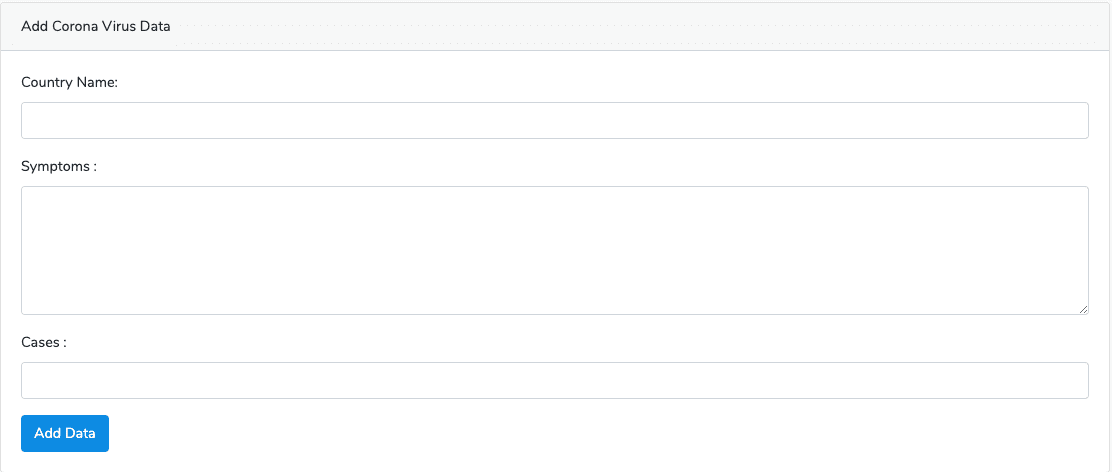
Okay, now we need to open the CoronaController.php file, and on the create() method, we need to return the view, and that is the create.blade.php file.
Go to a http://localhost:8000/coronas/create or http://laravel7crud.test/coronas/create
You will see something like the following.
Step 6: Add Validation rules and save data
In this step, we will add Laravel form Validation.
Now, add the CoronaController.php is that import the namespace of the Corona model inside the CoronaController.php file.
Now, write the following code inside the CoronaController.php file’s store() function.
Here, what we have done is, first check for all four fields of the form.
If the incoming data fail any of the rules, then it will directly go to the form with the error messages.
The store() method has a $request object as a parameter which will be used to access form data.
The first thing you want to do is validate the form of data.
We can use the $request->validate() function for validation, which will receive the array of validation rules.
Validation rules[] is the associative array.
Key will be the field_name and value with being the validation rules.
The second parameter is an optional array for custom validation messages.
Rules are separated with a pipe sign “|.” We are using the most basic validation rules.
If the validation fails, then it will redirect back to the form page with error messages. After the validation, we are creating the new case and save that case in the database.
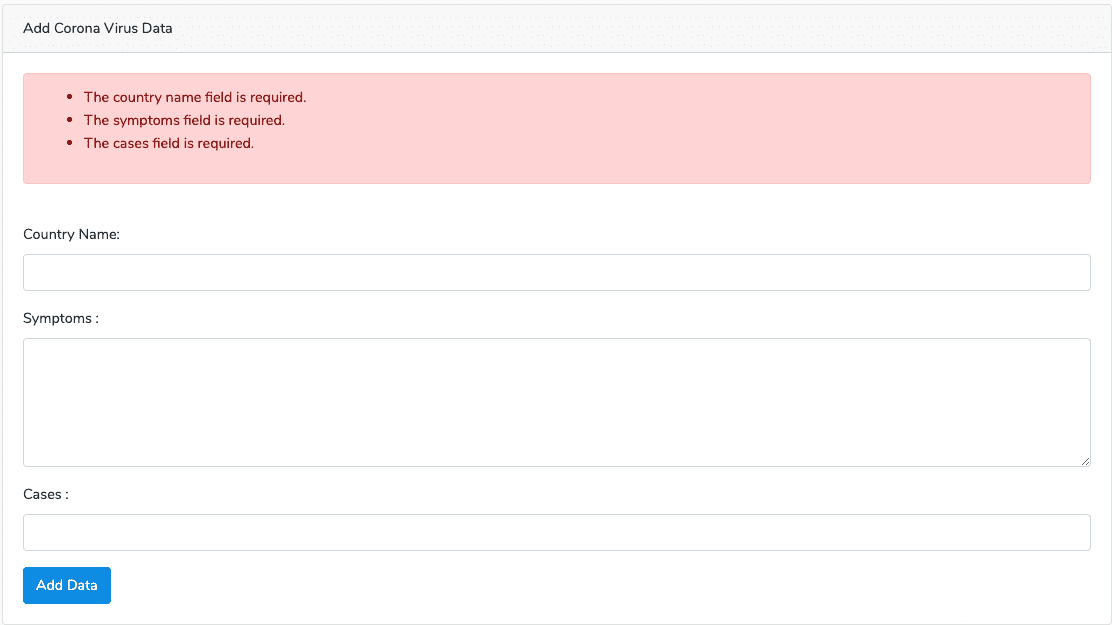
We need to loop through that error messages inside the create.blade.php file, which we have already done it.
If you leave all the form fields empty, then you will find the error message like this image.
Now, if you fill the form fields correctly, then it will create a new row in the database. I have created a new Case.

Step 7: Display the data
Now, we need to write the CoronaController’s index function to return the index view with data fetched from the database. Write the following code inside the index() function.
Okay, now create a file called index.blade.php inside the views folder and add the following code.
Here, we have looped through the coronacases’ array and display the data in a table format.
Also, we have added two buttons for edit and delete operation.

Step 8: Create Edit and Update Operation
First, we need to add the following code inside the CoronaController.php file’s edit function.
Now, create the new file inside the views folder called edit.blade.php and add the following code.
Go to any edit page of the listing data. Like, go to the: http://laravel7crud.test/coronas/1/edit or whatever URL of yours.
Now, add the following code inside the CoronaController’s update() function.
So now, you can update all the data into the database.
Step 9: Create Delete Functionality
Write the following code inside the CoronaController’s destroy function.
Go to the URL: http://laravel7crud.test/coronas and try to remove the Corona Case data.
You can see that you have successfully removed the case.
So, our complete CoronaController.php code looks like below.
So, we have completed a Laravel 7 CRUD operations example from scratch.
If you are interested in the FrontEnd Javascript framework like Vue with Laravel or Angular with Laravel, then check out the guides like Vue Laravel CRUD example and Angular Laravel Tutorial Example.
I have put the whole crud operation code on Github so you can check it out as well.
Last updated