
Laravel 9 Google Recaptcha V3 Example Tutorial
https://www.itsolutionstuff.com/post/laravel-9-google-recaptcha-v3-example-tutorialexample.html
Hello,
Here, I will show you how to work laravel 9 google recaptcha v3. I would like to show you laravel 9 google recaptcha example. you'll learn how to use google recaptcha v3 in laravel 9. you'll learn recaptcha v3 in laravel 9. Let's see below example google recaptcha register laravel 9.
Google ReCaptcha V3 is a captcha like system, that provide security against hackers and sticks or curl requests. It assures that a computer user is a human. It is the best and most used captcha system available where users are only required to click on a checkbox and in some cases select some similar images related to the conman question.
In this example, we will create a simple registration form and implement a google captcha code. before using google captcha code we will install "josiasmontag/laravel-recaptchav3" composer package for google captcha. You have to just follow a few steps and you will get google re-captcha code in your laravel 9 app.
Step 1: Install Laravel 9
This is optional; however, if you have not created the laravel app, then you may go ahead and execute the below command:
Step 2: Install josiasmontag/laravel-recaptchav3 Package
In this step we need to install josiasmontag/laravel-recaptchav3 via the Composer package manager, so one your terminal and fire bellow command:
After successfully install package, we require to publish config file with bellow command:
Step 3: Update Google API Key
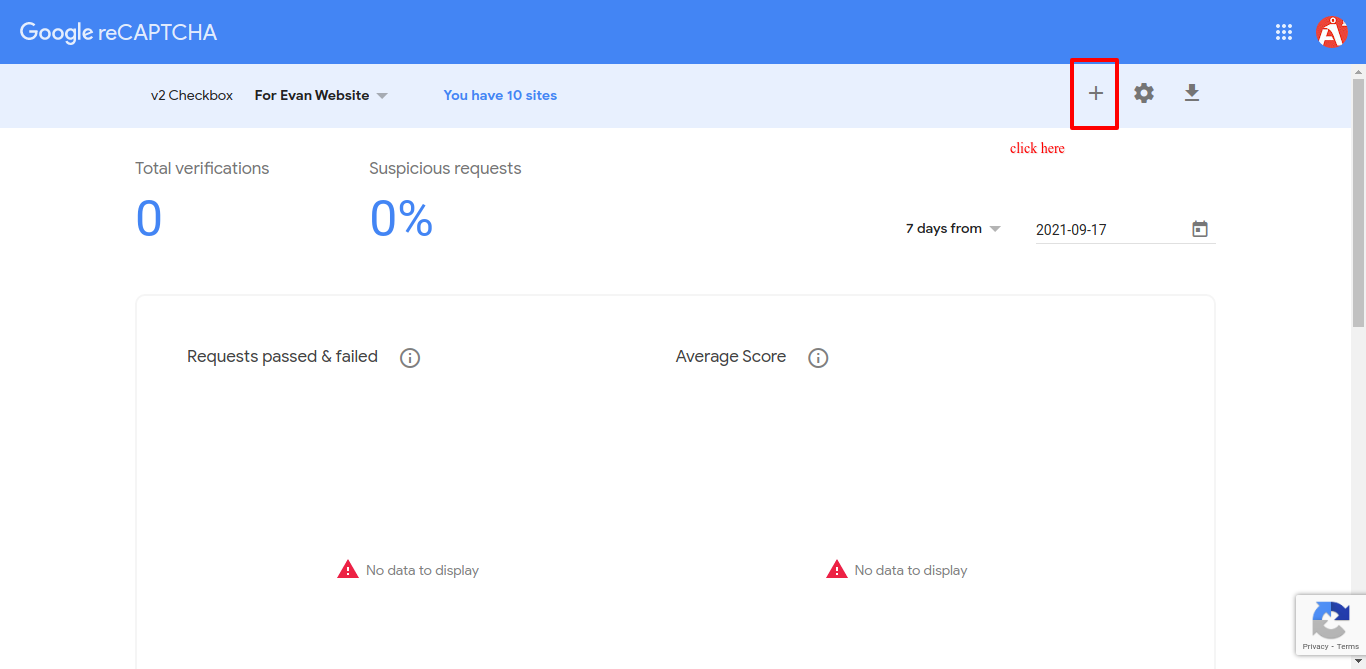
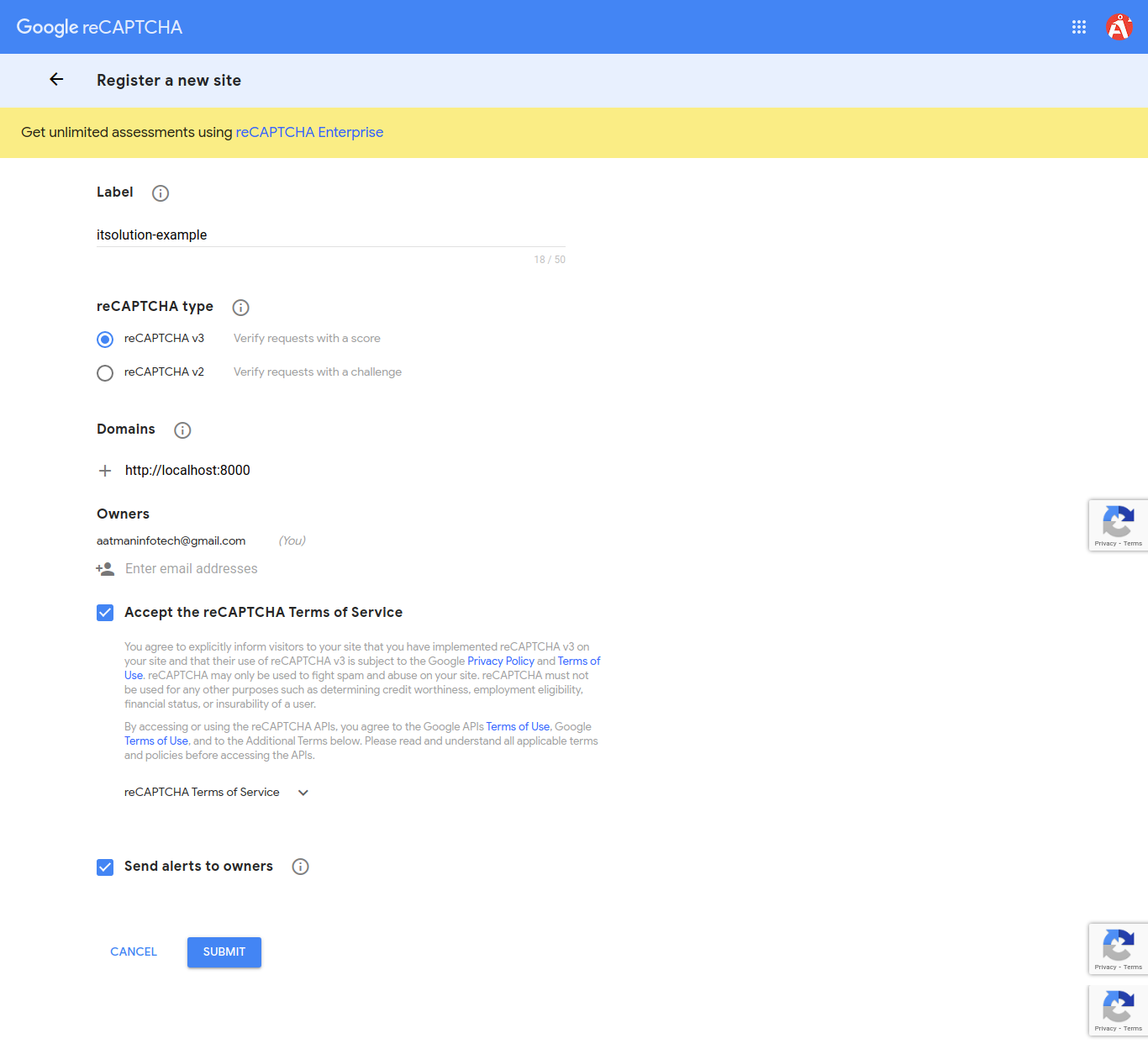
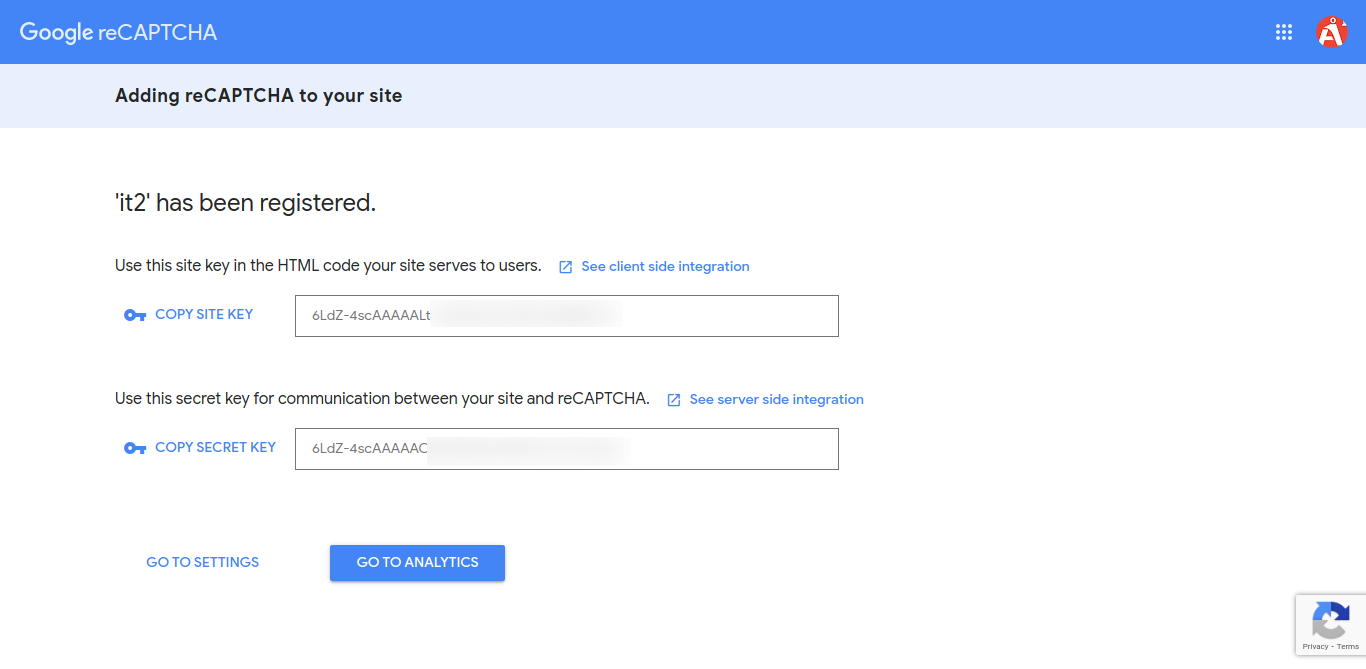
In this step we need to set google site key and secret key. If you don't have site key and secret key then you can create from here. First click on this link : Recaptcha Admin
Now you have to create new key for google recaptchav3 as bellow screen shot:
.env
Step 4: Create RegisterController
In this step, we have to create new controller as RegisterController and we have also need to add two methods index() and store() on that controller like as you can see bellow:
app/Http/Controllers/RegisterController.php
Step 5: Create Route
We need to create register routes as bellow:
routes/web.php
Step 6: Create View File
In Last step, let's create register.blade.php(resources/views/register.blade.php) for layout and lists all items code here and put following code:
resources/views/register.blade.php
Run Laravel App:
All the required steps have been done, now you have to type the given below command and hit enter to run the Laravel app:
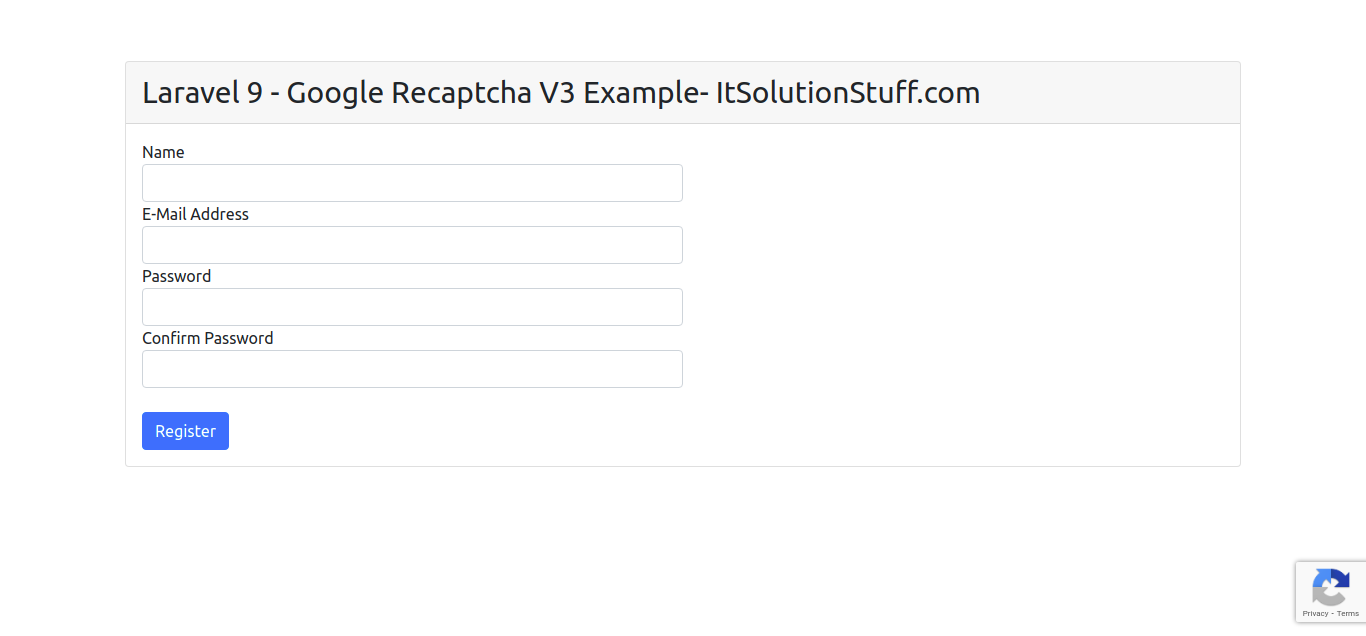
Now, Go to your web browser, type the given URL and view the app output:
Read Also: Laravel 9 Fullcalendar Ajax Tutorial Example
Output:
I hope it can help you...
Last updated