Laravel 5 Stripe example using Laravel Cashier from Scratch
By Hardik Savani April 12, 2016 Category : LaravelPlayUnmuteLoaded: 1.17%FullscreenIn this tutorial post i show you the example of Stripe subscription example using Laravel Cashier in Laravel 5.1 application. In this example i use Laravel Cashier(Billing) of Laravel 5. Whenever you are work on big project like ecommerce or ERP on that project mostly we need to use subscription plane for your application that way client can earn something. So the laravel include Billing subscription using Stripe. we will make bellow example for pay subscription payment method.
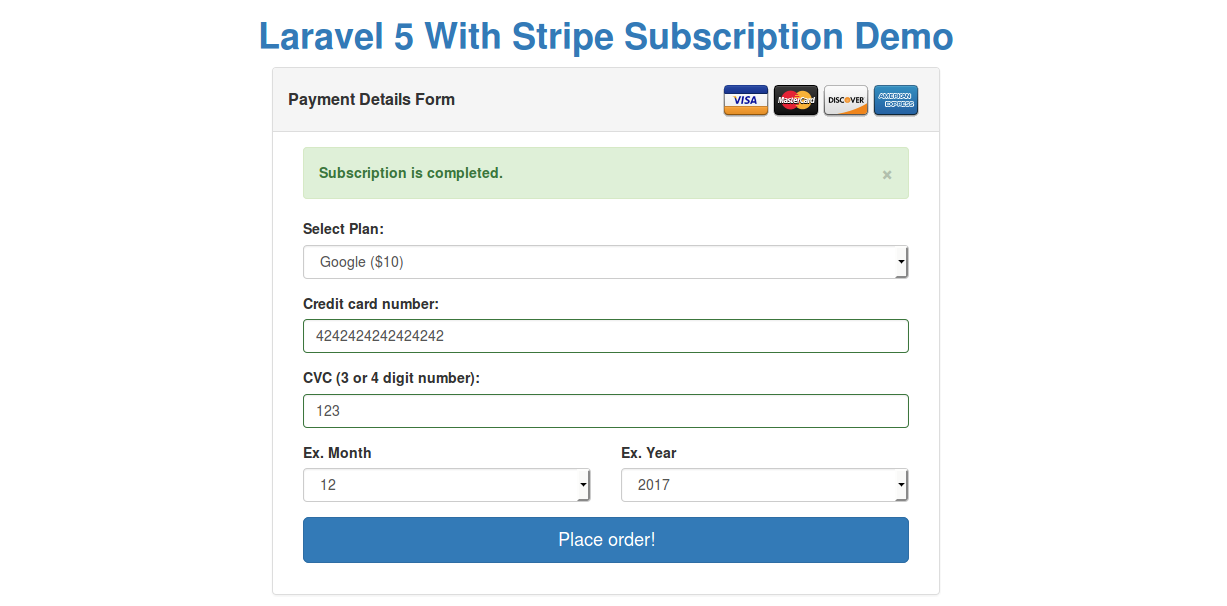
In bellow preview you can see i added 5 input field of form. one for select plane, second for add credit card number or dabit card number, third for CVC code, fourth and sixth for Expire month and year. It is a very simple and very easy to use. we will create following example by few following step.
Preview:
Step 1: Installation
In this step we will work on laravel installation and laravel package installation from scratch. If you didn't get laravel application then you can run bellow command in your terminal for Laravel app.
Install Laravel
Ok, now we are ready to use laravel/cashier package for get Stripe API services. So, let's add bellow line in your composer.json and then composer update.
composer.json
Composer Update
At last we need to add Service Provider of laravel Cashier, open config/app.php and add bellow line this way.
config/app.php
Now we are ready to add field in databse users table. so we have to just run bellow command and it will create automatically migration for database field.
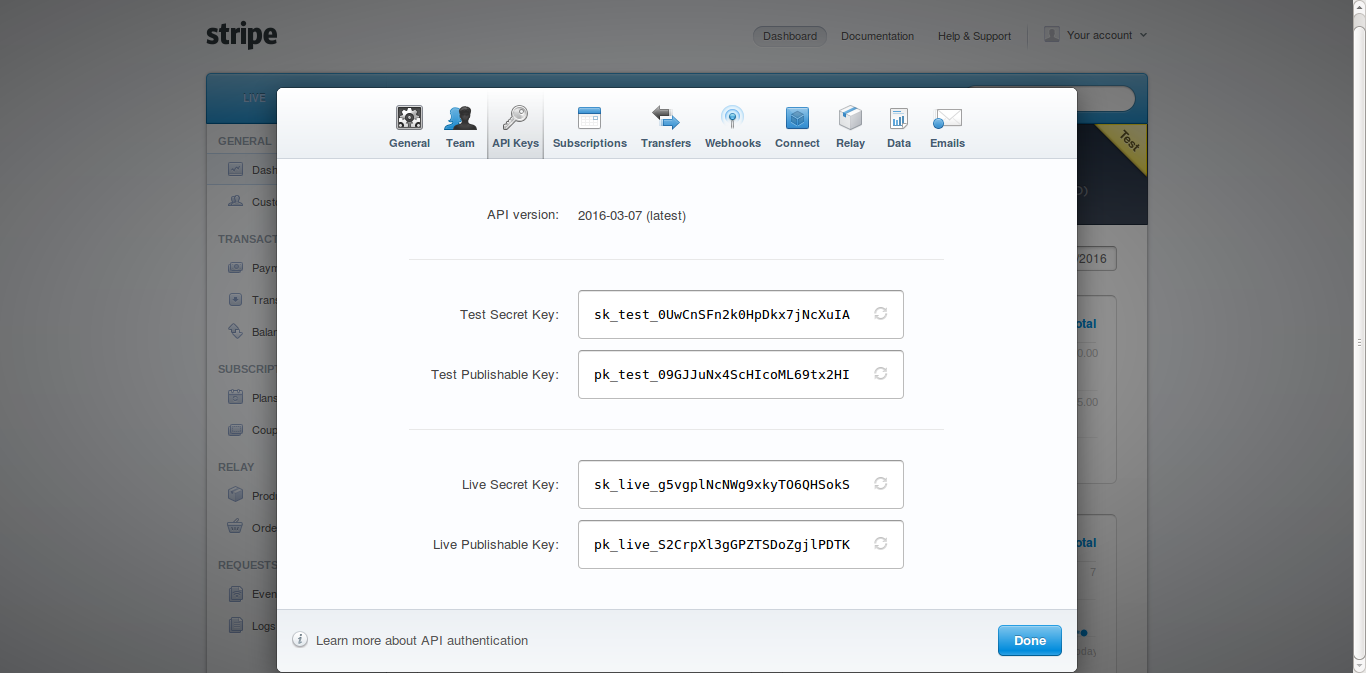
This step is a very important step, because in this step we will create stripe account if you don't have account then create account from here : Stripe. After create this account we will get API key and Public Key from this way: Open Stripe account and Click on right corner "Your Account" and Click on Account Setting. Now you have sevaral option and click on "API Keys". You can find like this:
Ok, now we have to cope "Test secret Key" and "Test publishable Key" and paste in .env file.
.env
Now open config/services.php file and set configration for stripe like this way:
In this step we are ready to create example of Stripe Subscription Payment using Laravel Cashier. so first open User Model and add Billable, BillableContract class this way:
app/User.php
Ok, now open app/Http/routes.php and bellow route this way:
app/Http/routes.php
Now If you don't have HomeController then create new HomeController and put bellow code.
app/Http/Controllers/HomeController.php
Ok, now last i created only one view for this example, i don't have create js or css file that way we don't have to make many file for create new view in bellow path with bellow code.
use Laravel\Cashier\Billable;use Laravel\Cashier\Contracts\Billable as BillableContract;class User extends Model implements BillableContract{ use Billable; protected $dates = ['trial_ends_at', 'subscription_ends_at'];}

 PlayUnmuteLoaded: 1.17%Fullscreen
 In this tutorial post i show you the example of Stripe subscription example using Laravel Cashier in Laravel 5.1 application. In this example i use Laravel Cashier(Billing) of Laravel 5. Whenever you are work on big project like ecommerce or ERP on that project mostly we need to use subscription plane for your application that way client can earn something. So the laravel include Billing subscription using Stripe. we will make bellow example for pay subscription payment method.